How to Validate, Clean, and Audit CSV Datasets Locally in Lab Mode
Step-by-step tutorial: switch to Lab Mode (Validate, Transform, Analyze), add audit steps to your recipe, run client-side anomaly checks, and submit sanitized data to a new sheet.
TLDR
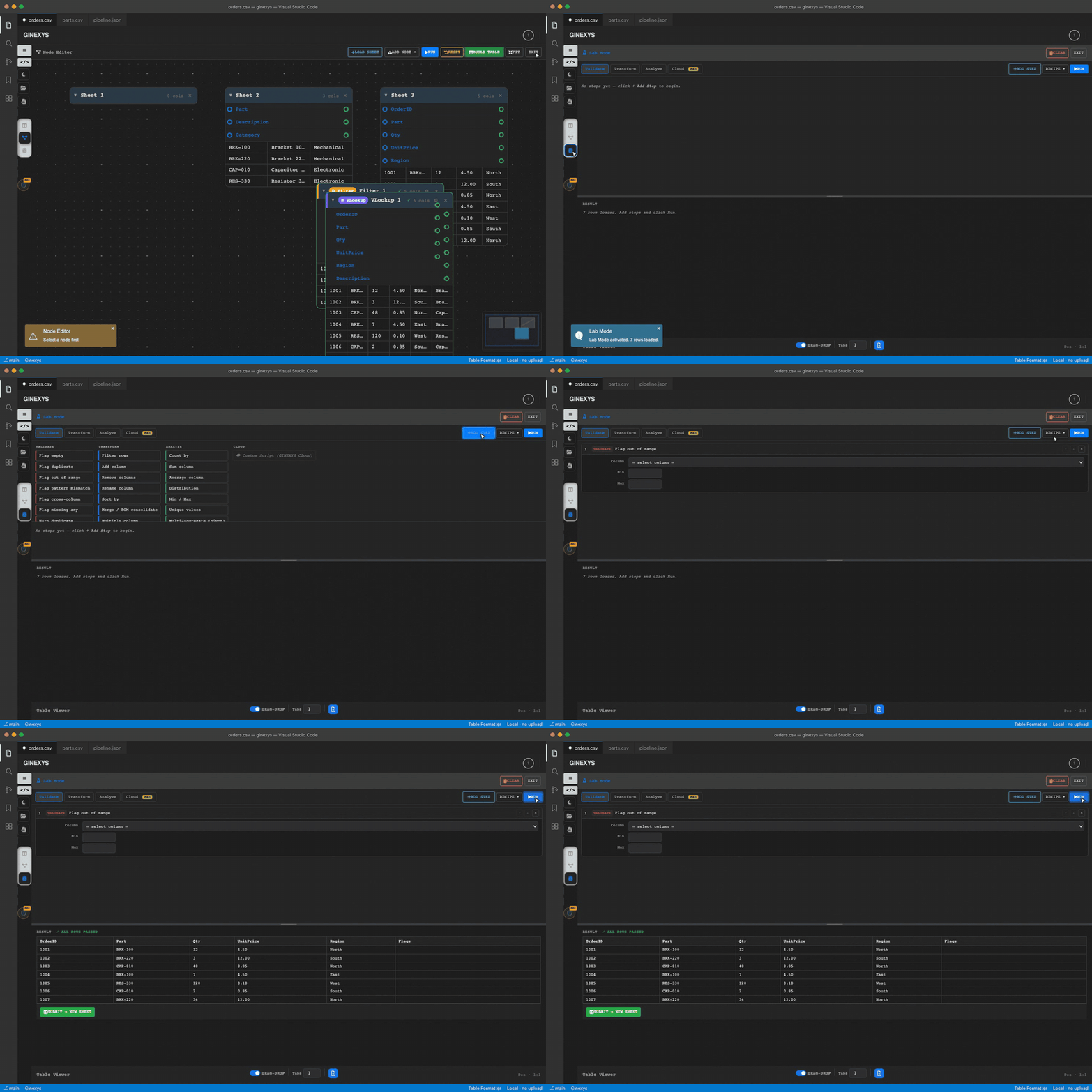
Switch to Lab Mode via the database icon in the left rail, load your CSV dataset, and click Add Step to configure validation and cleaning functions across Validate, Transform, and Analyze modes. Click Run to execute the audit recipe in local browser memory without uploading sensitive files, review flagged anomalies in the bottom preview pane, and click Submit → New Sheet to generate a clean sheet in the Sheet Manager.
Before you start
You need a raw CSV or TSV file (such as customer logs, order registers, or vendor directories) and a web browser.
Lab Mode executes non-destructively in client memory: your original sheet data remains preserved while transformations run.
Step 1 — Switch to Lab Mode
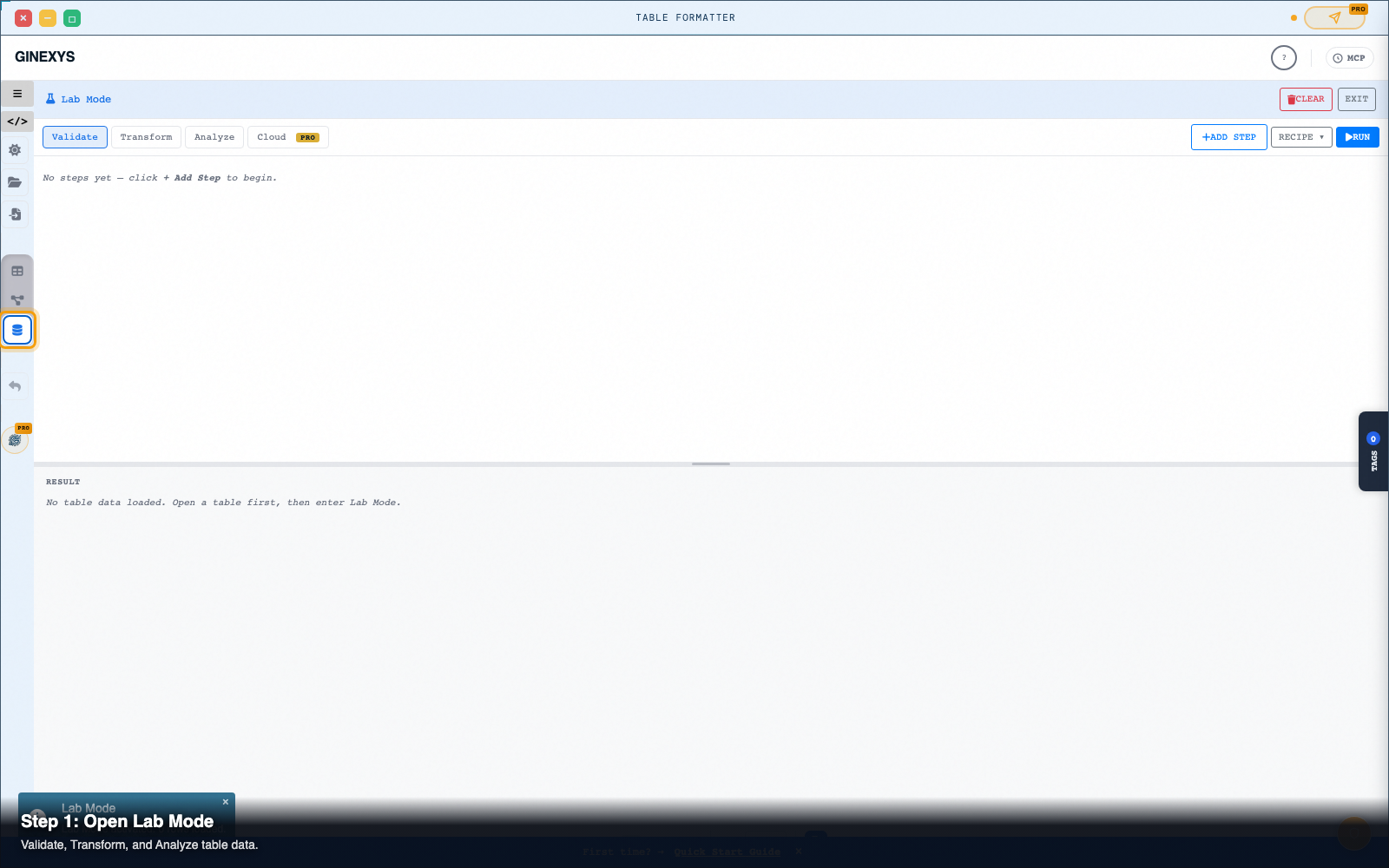
In Table Formatter, click the Lab Mode icon (#labModeToggle with the database icon) in the left-hand icon rail.
The workspace displays the dual-pane Lab Mode interface:
- Top Pane: Mode tabs (
Validate,Transform,Analyze,Cloud), step sequence builder, and recipe controls. - Bottom Pane: Real-time result preview (
#labResultContent) and anomaly badges.
Step 2 — Load your dataset into Sheet Manager
- Click the Folder Icon (
#loadFileBtn) in the left rail to load your.csvfile. - Or click Import Data (
#inputModalBtn) to paste CSV text directly.
#sheetTabBar).
Step 3 — Choose a mode tab and add audit steps
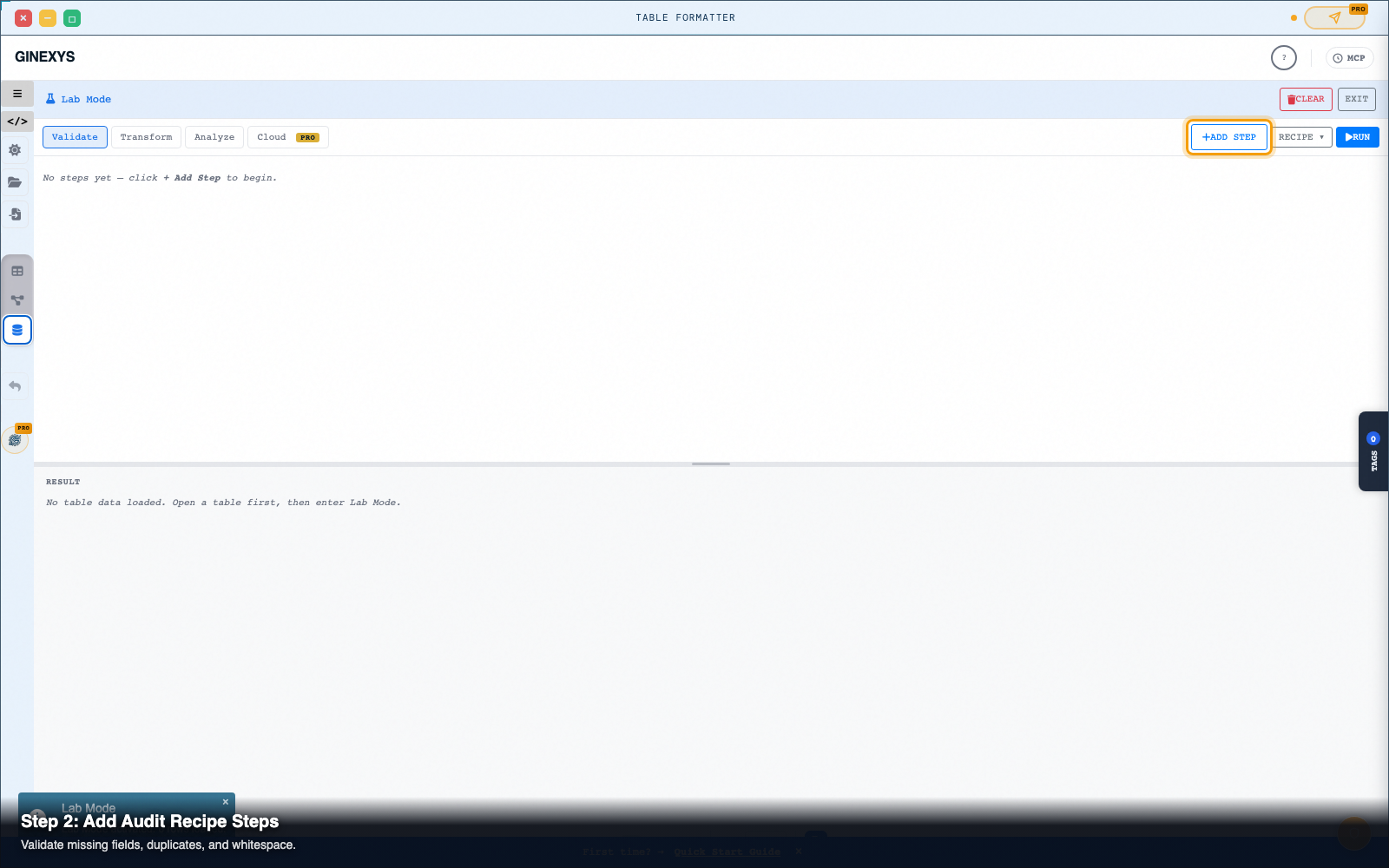
In the top tab strip of Lab Mode, choose the type of operation to perform:
- Validate: Click Add Step (
#labAddStep) to pick validation checks:
Email or Customer_ID).
- Check Duplicate Keys: Detects repeated primary keys or account numbers.
- Check Data Types: Flags non-numeric values in numeric columns or malformed email syntax.
- Transform: Add data cleaning steps:
- Analyze: Run profiling statistics:
Step 4 — Run the pipeline and inspect results
Click the blue Run button (#labRunBtn) in the top tab bar:
- The pipeline executes in under 20 milliseconds across thousands of rows.
- The bottom Result pane displays the execution summary, badge status (
#labResultBadge), and detailed anomaly logs with exact row coordinates. - To view the underlying JSON execution recipe, click Recipe ▾ (
#labRecipeToggle) to inspect the read-only Monaco recipe editor.
Step 5 — Submit clean data to a new sheet
Once your validation passes and transformations are complete:
- Click the green Submit → New Sheet button (
#labSubmitBtn) in the bottom pane. - Lab Mode exports the transformed dataset directly into a new sheet tab (e.g.
Sheet 2) in the Sheet Manager. - Click Exit (
#exitLabMode) to return to the visual Table Mode editor.
Step 6 — Generate and download the sanitized file
In the right-hand Generate Code panel:
- Select CSV, JSON, or SQL from the format dropdown (
#exportFormat). - Click Generate (
#generateCode). - Click Download (
#downloadCode) to save your clean, audited file.
Pro tip: non-destructive source protection
Lab Mode never overwrites your raw source data.
You can modify function parameters, add or delete steps in #labStepList, and re-run audits as many times as needed. Your original raw source sheet stays untouched in the Sheet Manager tab bar.
Next steps
Table Formatter — Clean, reshape, and convert tabular data between HTML, CSV, TSV, SQL, and Markdown.