How to Convert Raw Delimited Text into SQL INSERT Statements
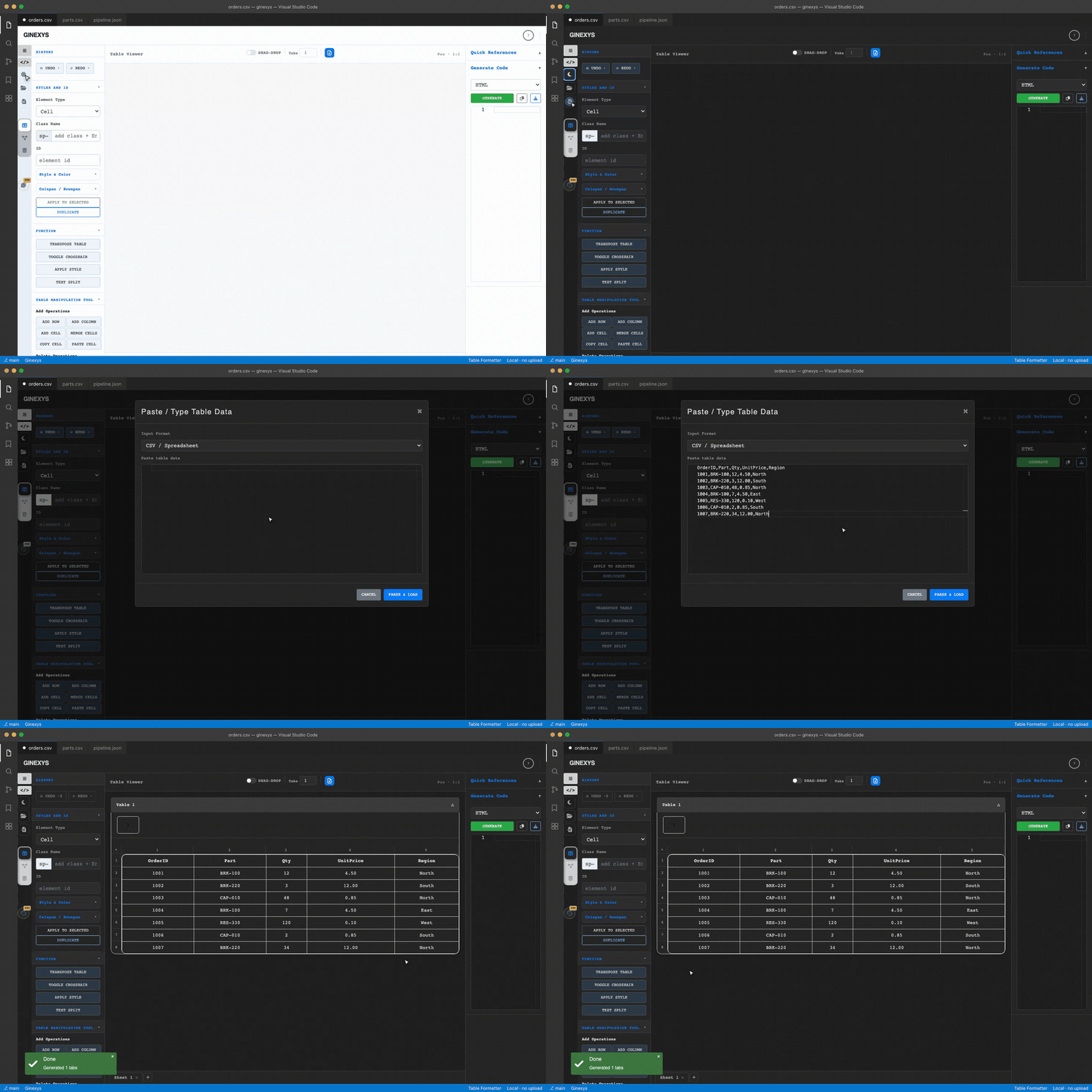
Step-by-step tutorial: import text via the Import Modal or paste directly, use the Text Split tool (Alt+Shift+T / Alt+Shift+X) to parse columns, and generate clean SQL DDL and INSERT statements in the Monaco Code panel.
TLDR
Click the Import Data button in the left icon rail (or paste raw text into the canvas and use the Text Split tool via Alt+Shift+T / Alt+Shift+X) to parse pipe, tab, or comma-delimited strings into a clean spreadsheet grid. In the right-hand Generate Code panel, select SQL from the format dropdown and click Generate to produce production-ready CREATE TABLE and batch INSERT INTO statements with automatic quote escaping.
Before you start
You need a block of raw unformatted text (such as terminal log output, pipe-delimited records, or tab-separated clipboard data) and a web browser.
Table Formatter (Table IDE) runs entirely client-side, parsing text and generating SQL queries in local browser memory without transmitting your data across the network.
Step 1 — Import raw text into Table Formatter
Navigate to Table Formatter and choose one of two import methods:
- Import Modal: Click the Import Data icon in the left icon rail (or click the folder icon to load a
.txt,.csv,.tsv, or.sqlfile). Select your input format (e.g.ASCII,CSV, orText), paste your raw records into the input box, and click Parse. - Direct Canvas Paste: Click into cell
A1in the center Table Viewer and paste your raw text usingCmd+V/Ctrl+V.
SKU-101 | Microcontroller Unit | 250 | In Stock
SKU-102 | Resistor 10k 0805    | 5000| In Stock
SKU-103 | Capacitor 100nF       | 0   | Backordered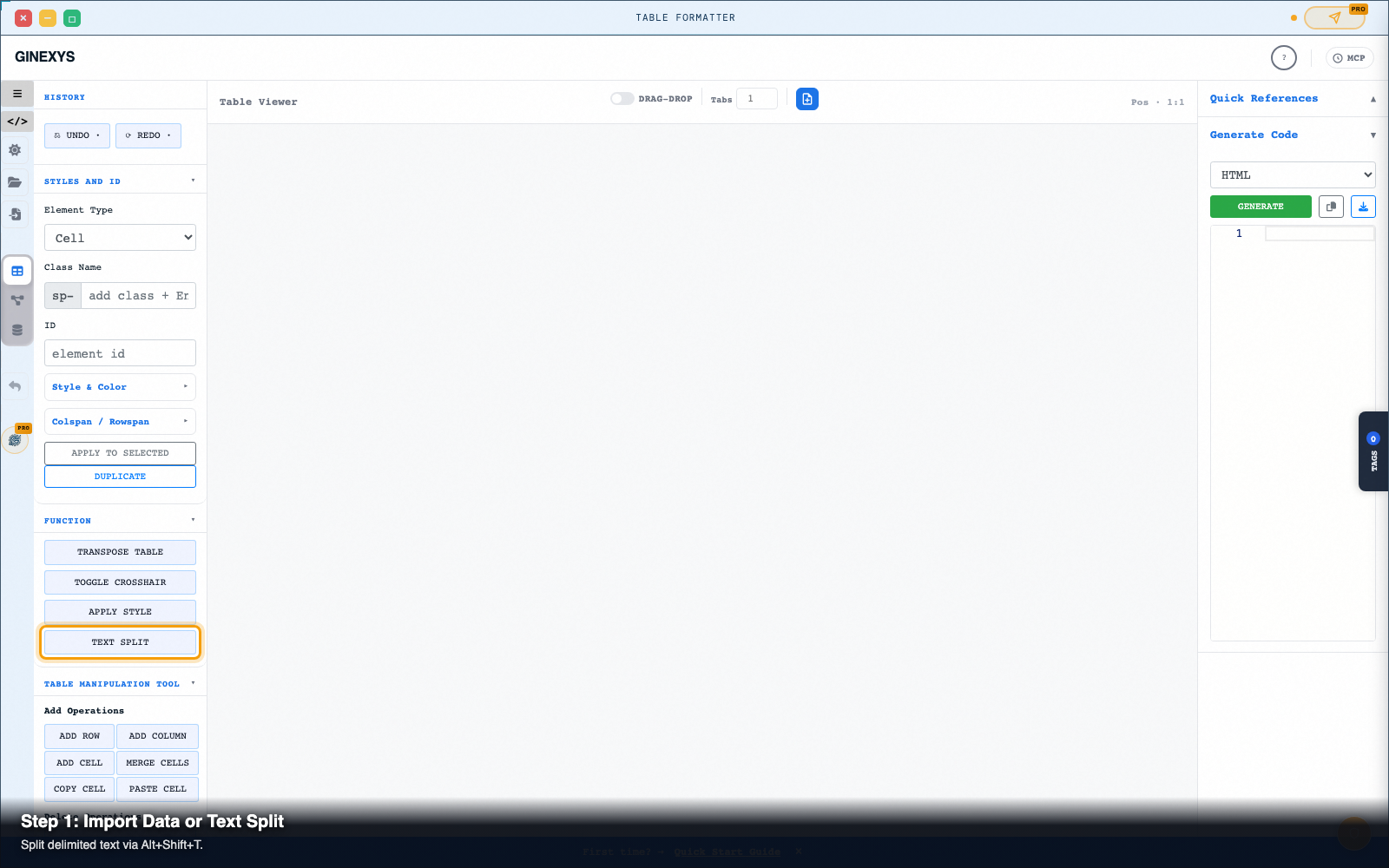
Step 2 — Use the Text Split tool to parse delimiters
If you pasted raw delimited text into a single column:
- Select the cells containing your text strings.
- In the left panel under Function, click Text Split (or press
Alt+Shift+T). - Set your column delimiter (
|,,,\t, or custom character) and row delimiter (\n). - Press
Alt+Shift+Xto execute the split.
SKU, Column B becomes Item Name, Column C becomes Quantity, and Column D becomes Status.
Step 3 — Set headers and edit cell values
Click into any cell to verify text alignment:
- Double-click any cell to make inline corrections.
- In the left panel under Styles And ID, select Element Type: Row, choose Row 1, and add styling or header tags.
- Use Add Row (
#addRow) or Add Column (#addColumn) under Table Manipulation Tool if additional fields are required.
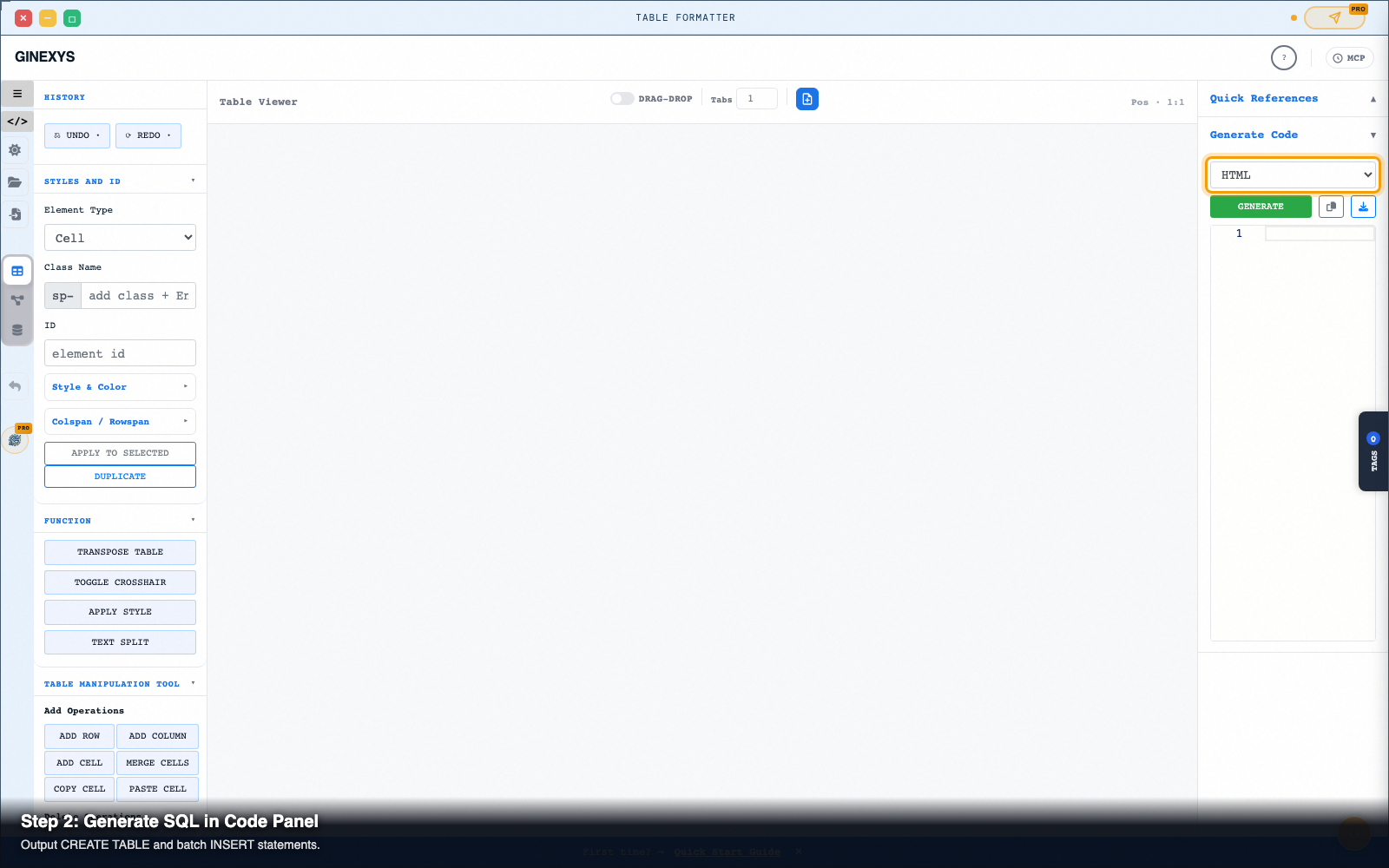
Step 4 — Select SQL format in the Generate Code panel
In the right-hand Generate Code panel:
- Click the Format Dropdown (
#exportFormat). - Select SQL from the available formats (
HTML,JSON,Markdown,CSV,SQL,ASCII). - Click the green Generate button (
#generateCode).
Step 5 — Inspect and copy generated SQL scripts
The embedded Monaco code editor renders clean, formatted SQL migration scripts:
-- Generated SQL migration script from Table Formatter
CREATE TABLE table_name (
    column_1 VARCHAR(50) NOT NULL,
    column_2 VARCHAR(255) NOT NULL,
    column_3 INTEGER NOT NULL,
    column_4 VARCHAR(50) NOT NULL
);
INSERT INTO table_name (column_1, column_2, column_3, column_4) VALUES ('SKU-101', 'Microcontroller Unit', 250, 'In Stock'), ('SKU-102', 'Resistor 10k 0805', 5000, 'In Stock'), ('SKU-103', 'Capacitor 100nF', 0, 'Backordered');
- Click the Copy icon button (
#copyInput) to copy the SQL queries directly to your clipboard. - Or click the Download icon button (
#downloadCode) to save a.sqlfile ready for database execution.
Pro tip: single quote auto-escaping
If any of your string values contain apostrophes (such as O'Reilly or Customer's Order), Table Formatter automatically doubles the single quotes ('') during SQL generation, ensuring your database transaction executes without syntax crashes.
Next steps
Table Formatter — Clean, reshape, and convert tabular data between HTML, CSV, TSV, SQL, and Markdown.