How to Convert PDF to Clean Semantic HTML and Markdown
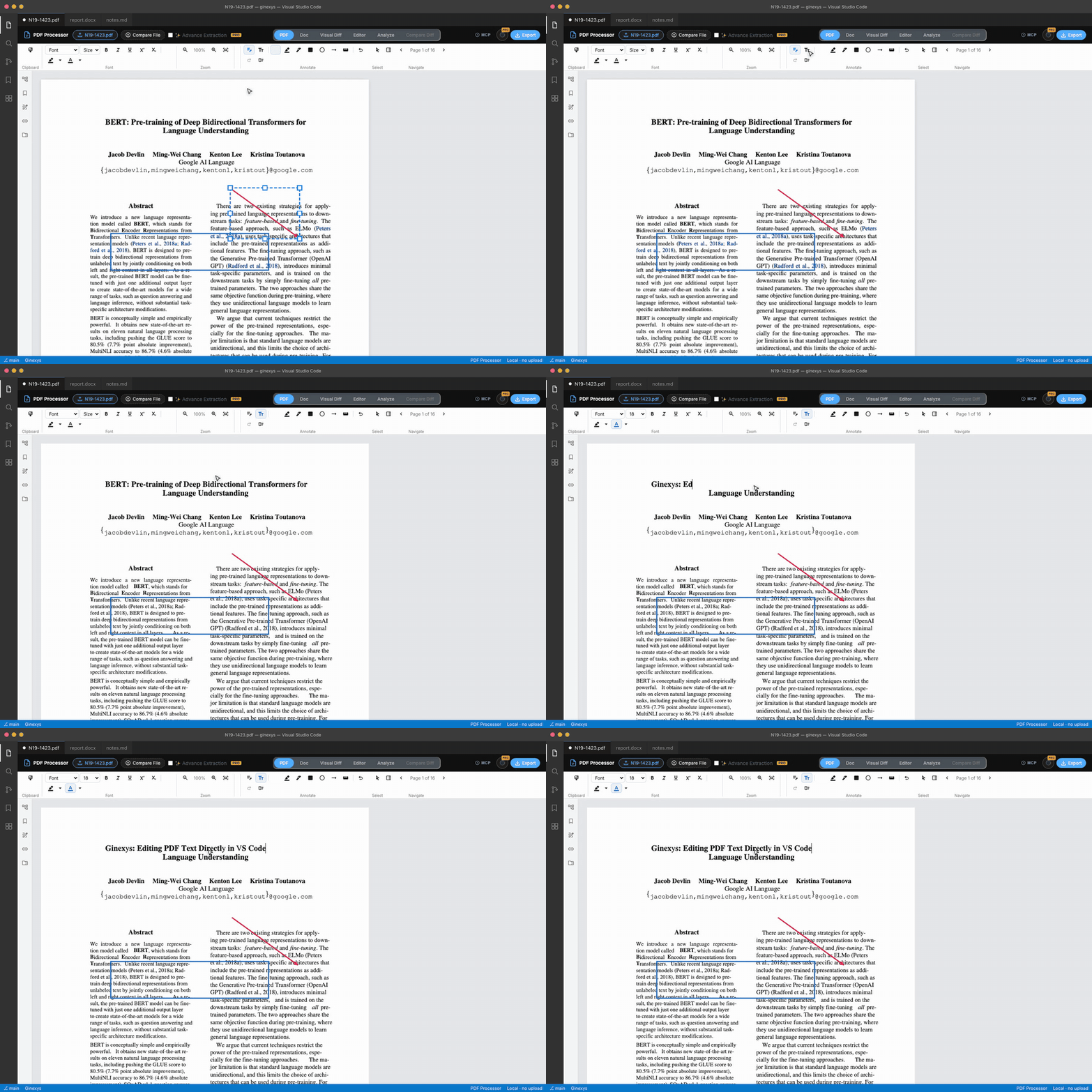
Step-by-step tutorial: load a PDF, inspect the reconstructed document in the Doc tab, format headings and lists with the inline toolbar, edit raw markup in Monaco, and export clean HTML.
TLDR
Open a PDF, switch to the Doc tab to inspect the reconstructed document flow, and use the floating formatting toolbar to adjust headings, lists, and paragraphs. For granular source edits, jump to the Editor tab to modify HTML markup with live Monaco editor preview, then click Export to save standalone HTML or clean Markdown.
Before you start
You need a PDF document and a modern web browser. The entire extraction pipeline runs client-side inside your browser, so your files are never uploaded to any remote server.
For this tutorial, a multi-page document with headings, bullet lists, and paragraphs works best to demonstrate structural flow reconstruction.
Step 1 — Open your PDF file
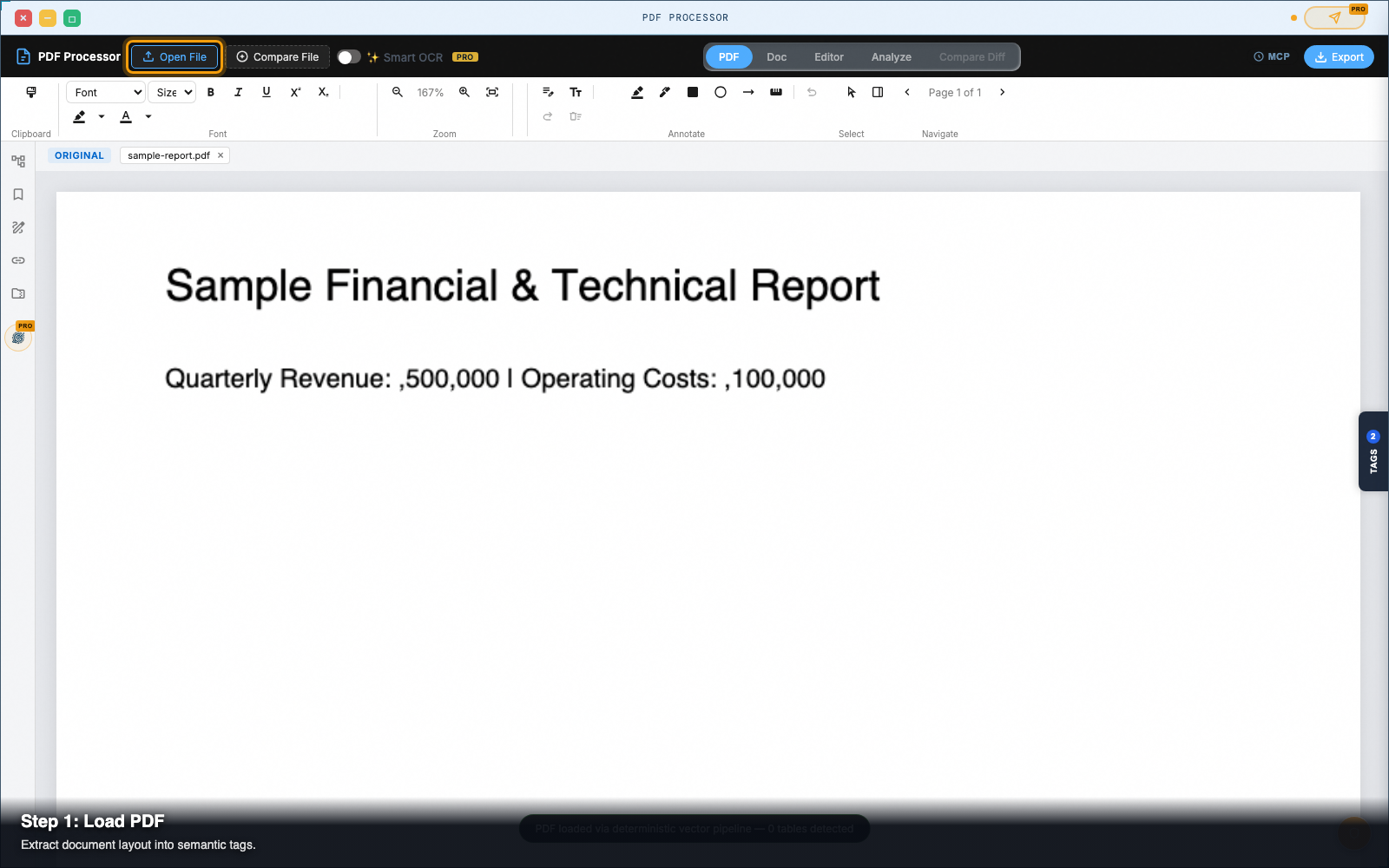
Click Open File in the top navigation bar and select your PDF from your device.
Extraction runs immediately on load. When processing completes, the PDF tab displays the original document layout with selectable text layers.
Step 2 — Switch to the Doc view
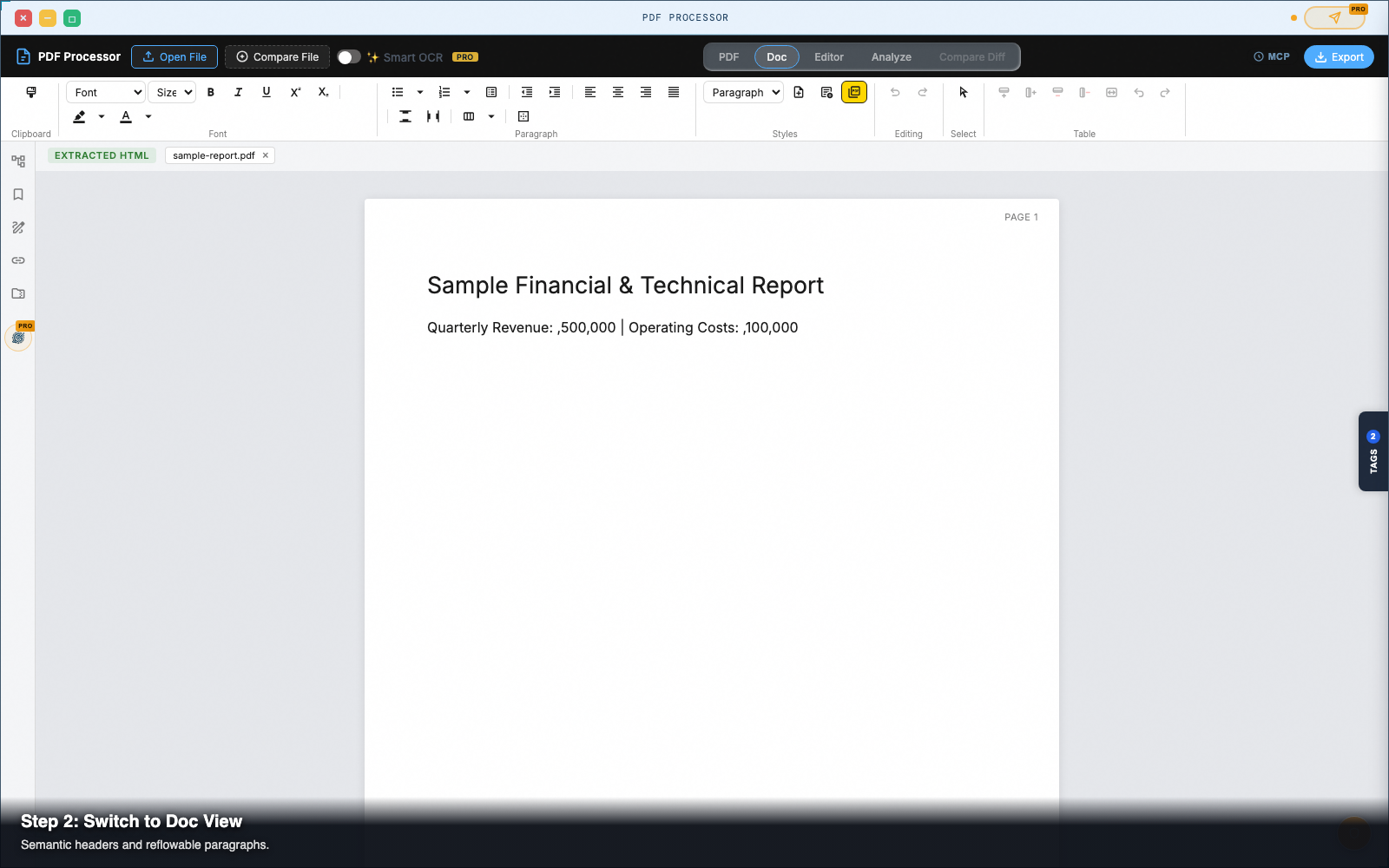
Click Doc in the top tab strip.
Unlike typical converters that export unmaintainable absolute-positioned <div> coordinates, PDF Processor reconstructs standard HTML document flow using semantic tags:
- Headings become
<h1>through<h6>. - Body paragraphs wrap in clean
<p>elements. - Bullet points group into structured
<ul><li>lists.
Step 3 — Refine structure with the floating toolbar
Select any block of text inside the Doc view to open the floating formatting toolbar.
- Set Heading Levels: Click the heading dropdown to convert plain lines into
H1,H2, orH3. - Create Lists: Click the bullet or numbered list button to convert newline-delimited lines into semantic
<ul>or<ol>elements. - Apply Inline Styles: Use
Bold,Italic, orCodebuttons (or standardCtrl+B/Cmd+Bshortcuts) to style inline terms without breaking the document tree.
Step 4 — Switch to the Editor tab for source-level tweaks
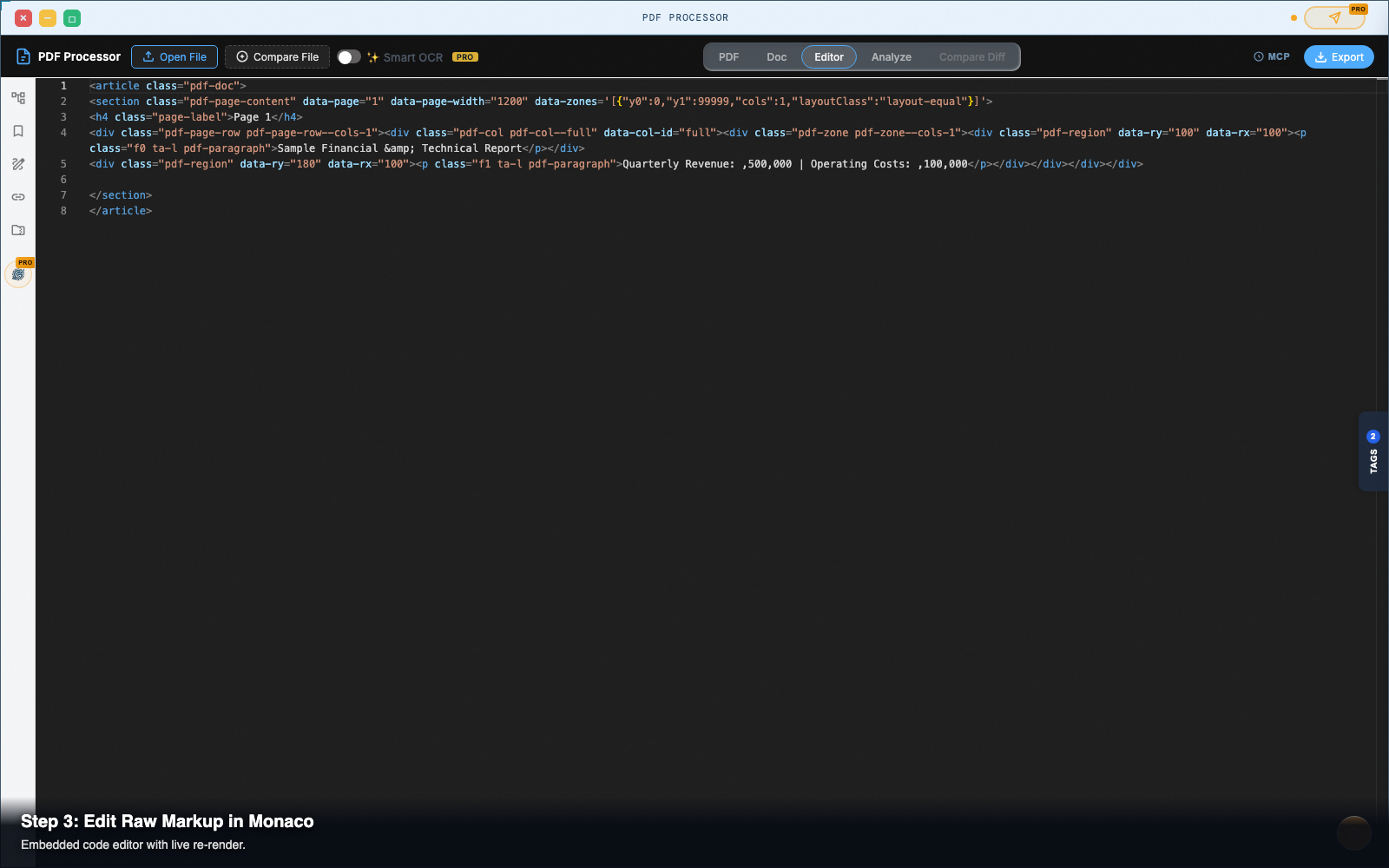
Click Editor in the top navigation bar.
The Editor view opens a full-featured Monaco code editor containing the raw extracted HTML alongside a live rendered preview pane.
- As you edit HTML tags or attributes in the code editor, the preview pane updates in real time.
- Use standard code editor shortcuts like search (
Cmd+F/Ctrl+F) and multi-cursor (Alt+Click) to perform batch replacements on class names or attributes.
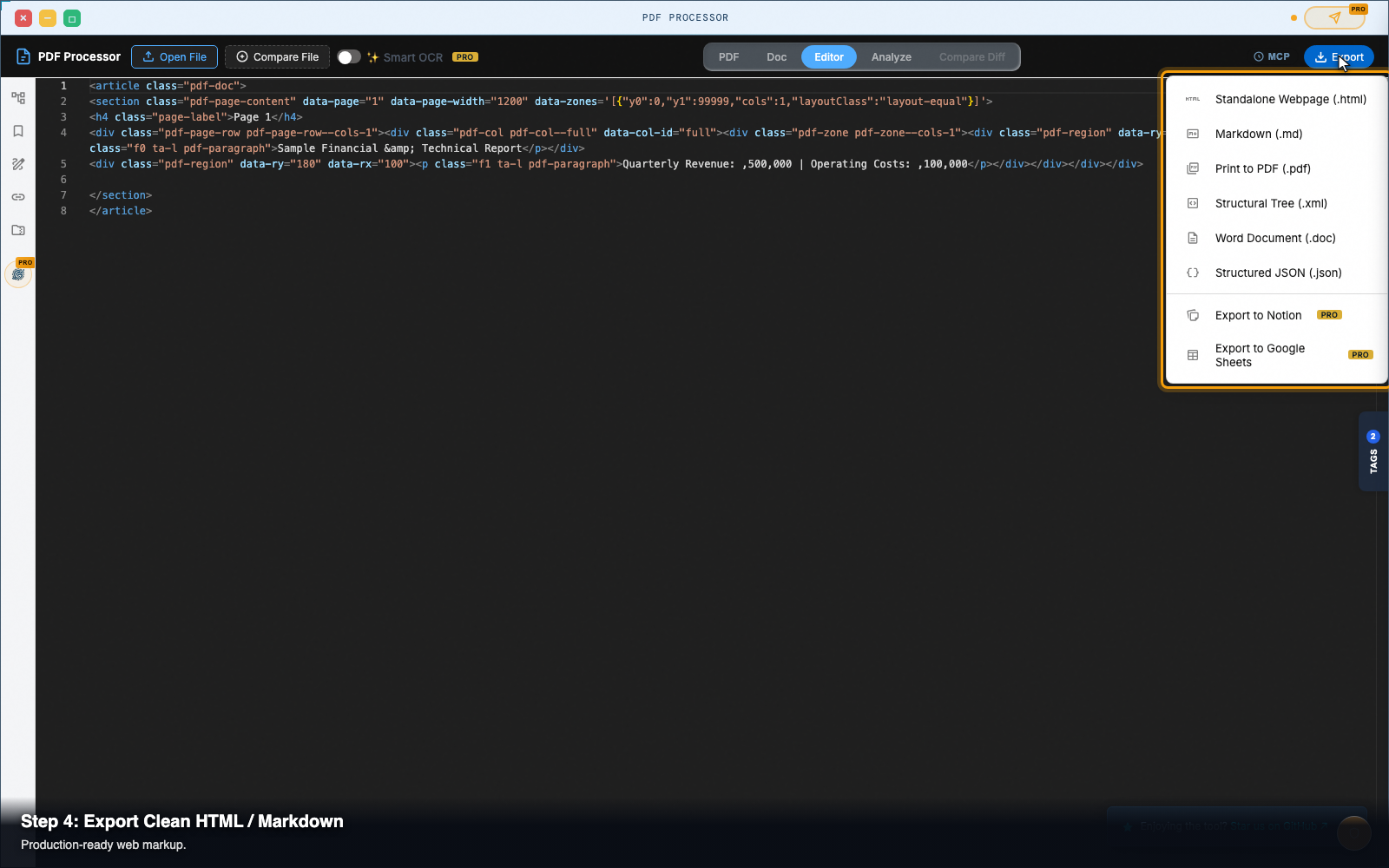
Step 5 — Export clean HTML or Markdown
When your document is ready, click Export in the top-right header:
- Standalone Webpage (.html): Downloads self-contained HTML with embedded styles, ready to publish or embed into a CMS.
- Markdown (.md): Converts semantic tags directly into clean GitHub Flavored Markdown for documentation sites.
- Word Document (.doc): Exports structured text formatted for Microsoft Word and Google Docs.
Pro tip: clean semantic tags vs absolute divs
Most PDF converters export pages as fixed-canvas div elements with inline top and left pixel styles. While this mimics the print layout, the markup cannot adapt to mobile screens or reflow into web layouts.
GINEXYS PDF Processor analyzes font sizes, baseline alignments, and spatial margins to output responsive HTML elements that adapt cleanly to any screen width.
Next steps
PDF Processor — Pull text, tables, and vector geometry out of PDFs — in the browser, with no upload.