How to Compare Two PDF Files with Character-Level Diff in Your Browser
Step-by-step guide: load two PDF versions, enable synchronized split comparison, inspect character-level additions and deletions, and audit contract changes locally.
TLDR
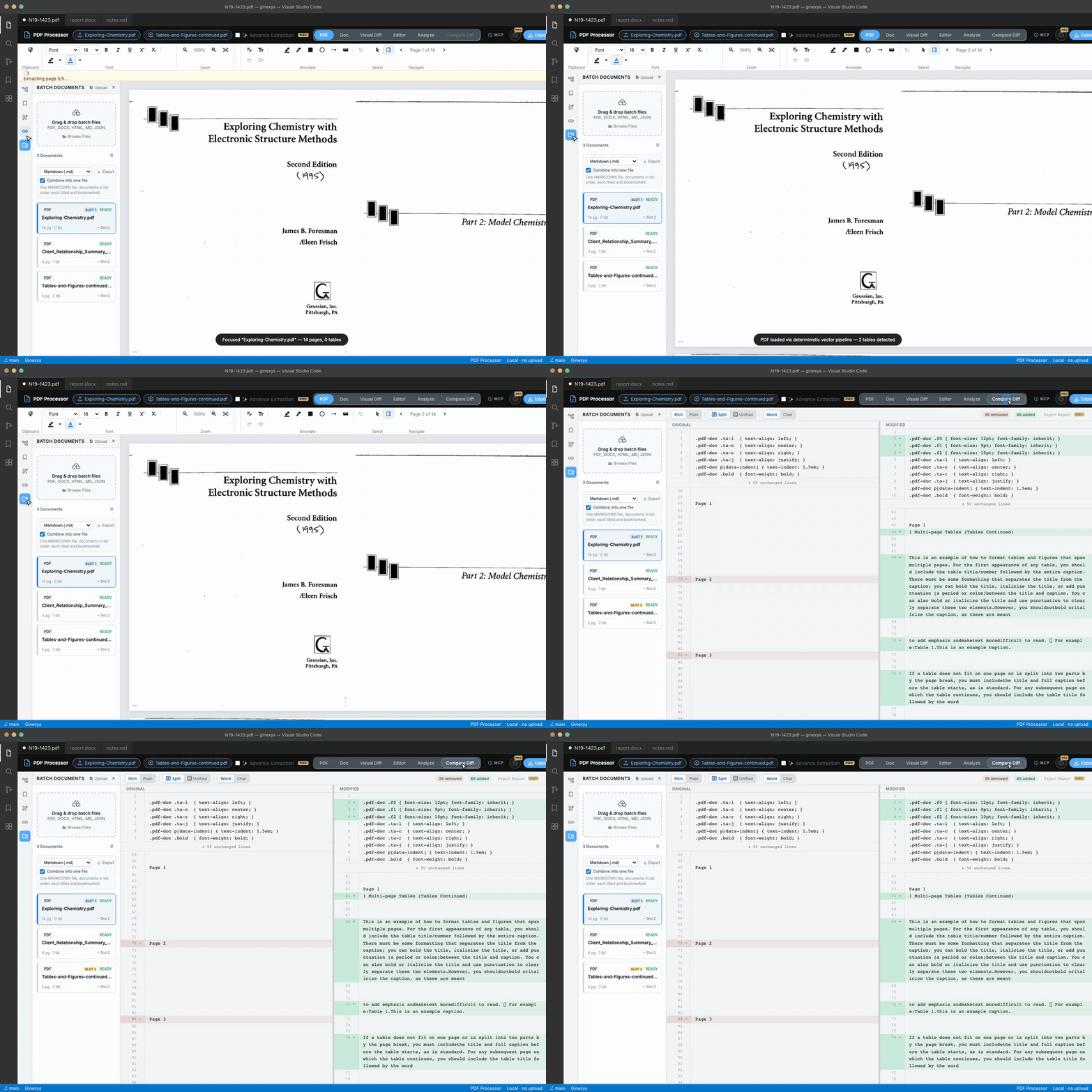
Load your baseline PDF using Open File, click Compare File to load the revised document, and switch to the Compare Diff tab. Both documents open side by side with synchronized scrolling, highlighting added characters in green and deleted characters in red so you catch modified dates, pricing figures, and clauses instantly without uploading sensitive files.
Before you start
You need two PDF files (such as Version 1 and Version 2 of a contract, lease agreement, or financial disclosure) and a web browser.
Everything runs entirely in your local browser memory: no documents are uploaded to cloud servers or stored in remote caches.
Step 1 — Load the base PDF document
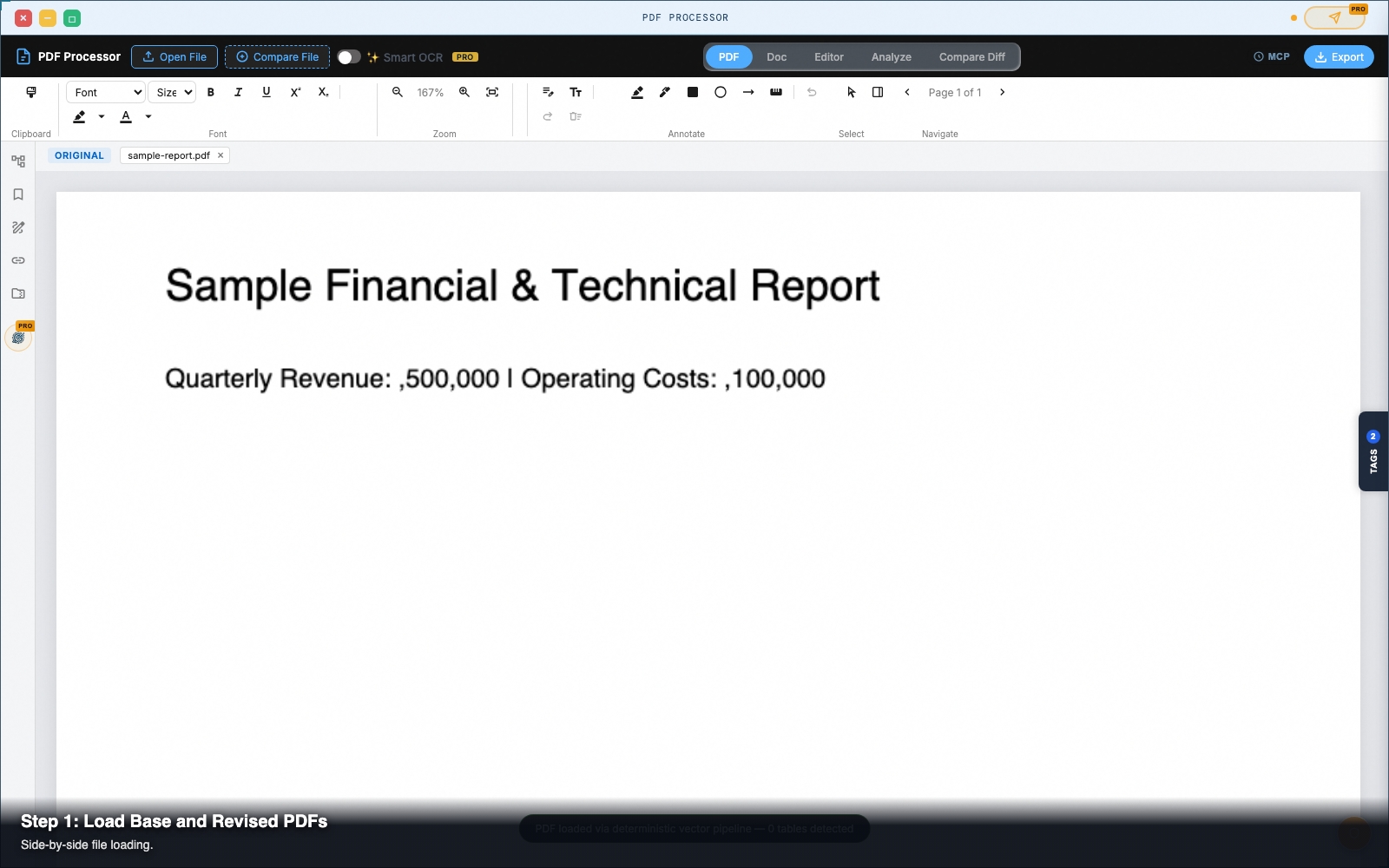
Click Open File in the top navigation bar and select your original PDF (Contract_v1.pdf).
The document renders on the PDF tab. Its filename appears in the top-left pane header chip.
Step 2 — Load the revised comparison PDF
In the header bar, click Compare File (the button beside Open File).
Select your revised document (Contract_v2.pdf). When the second file finishes parsing, the Compare Diff tab in the main tab bar becomes active.
Step 3 — Switch to the Compare Diff tab
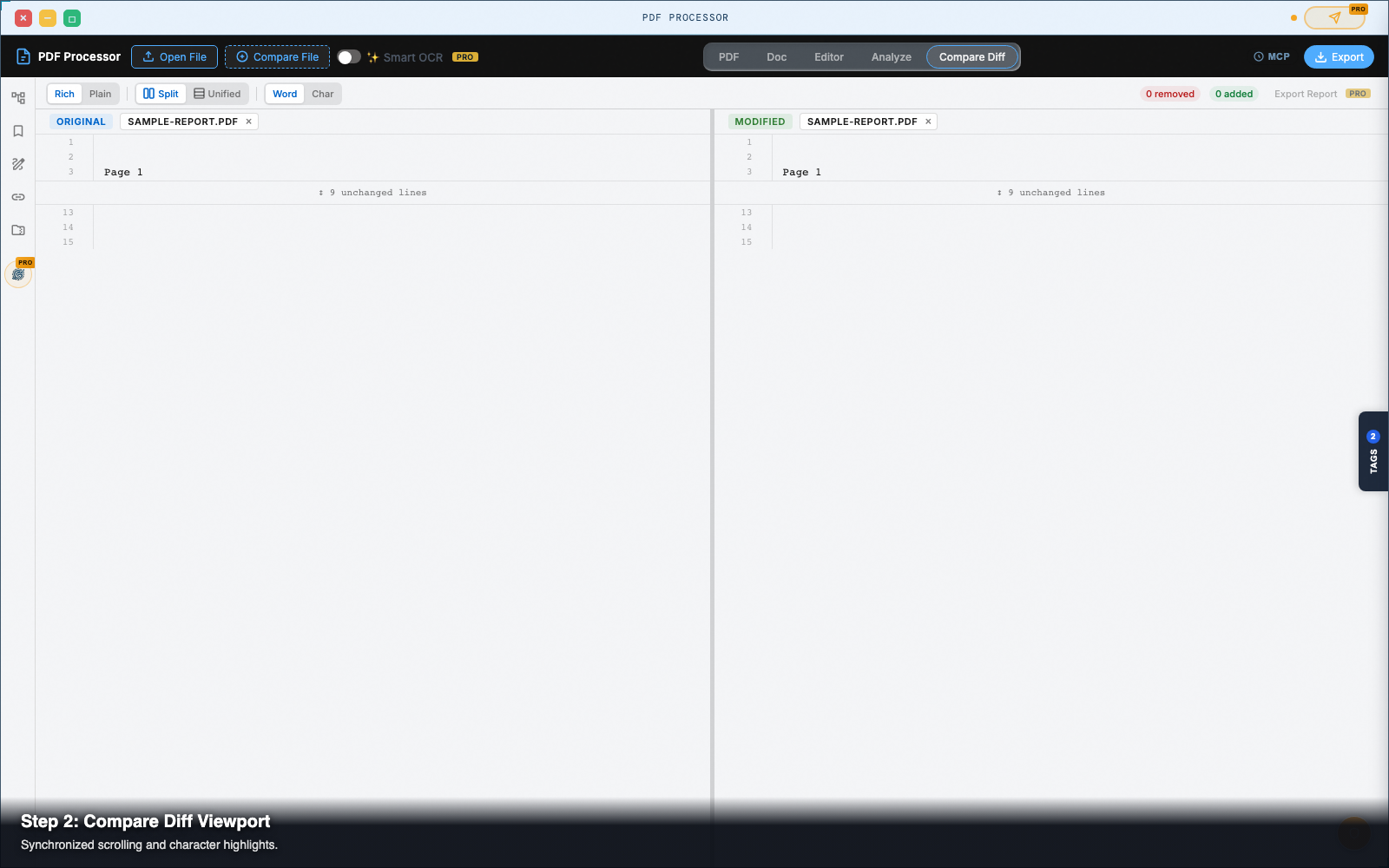
Click Compare Diff in the top tab strip.
The interface splits into a dual-viewport comparison workspace:
- The left pane displays the original document (
Contract_v1.pdf). - The right pane displays the revised document (
Contract_v2.pdf). - A center divider separates the two viewports. Drag the divider to allocate more horizontal room to either document.
Step 4 — Scroll with synchronized viewport locking
Scroll or zoom in either pane.
The opposite pane automatically mirrors your scroll position and zoom level in real time. The engine calculates normalized percentage ratios so that even if one document has extra lines or minor height differences, corresponding sections stay aligned side by side.
Step 5 — Toggle Character vs Word diff modes
In the comparison toolbar above the viewports, select your diff granularity:
- Character Diff: Compares documents down to the individual letter or digit. Ideal for auditing financial spreadsheets, price tables, or serial numbers where a single digit changed (such as
$50,000changed to$58,000). - Word Diff: Compares documents by word tokens. Ideal for reviewing legal contracts, editorial manuscripts, and clause insertions.
Step 6 — Review highlighted changes on the canvas
Inspect the visual diff overlay:
- Green Highlights: Text, numbers, or clauses added in the revised file.
- Red Highlights: Content deleted from the original file.
- Amber Highlights: Modified terms where wording was replaced.
Pro tip: auditing multi-page shifts
When an added clause in Version 2 pushes subsequent paragraphs onto the next page, traditional line-diff tools show every subsequent page as completely changed.
GINEXYS PDF Processor pairs spatial bounding box analysis with string hashing. It tracks moved paragraphs across page boundaries and highlights only the net change, preventing false-positive clutter on subsequent pages.
Next steps
PDF Processor — Pull text, tables, and vector geometry out of PDFs — in the browser, with no upload.